🚀 Welcome to MDriven Learn –  MDriven is now on Discord!  Don’t miss the latest Release Notes.
Downgrade MDriven Framework version
This page was created by Fanny on 2018-01-04. Last edited by Wikiadmin on 2026-09-12.

You can downgrade an installed MDriven Framework version and resolve the build or assembly conflicts that can remain afterwards; this page is for developers working with an existing Visual Studio solution.

A version change can leave generated code, installed assemblies, or Global Assembly Cache (GAC) entries from the previous version. Start with the least invasive recovery procedure and continue only when the previous procedure does not resolve the problem.

Before you start

Close applications that use the solution before you change the installed MDriven Framework version or remove GAC assemblies. An application that still has an assembly loaded can prevent removal and leave conflicting files behind.

Install the required earlier MDriven Framework version from the installer file you downloaded. If the installer asks whether to uninstall the currently installed version, select Yes.

After installation, open the solution in Visual Studio and follow the recovery steps below.

Step 1: Clean, update generated code, and build

Use this procedure first. It removes existing build output, regenerates the solution code, and compiles against the installed Framework version.

  1. In Visual Studio, right-click the solution in Solution Explorer.
  2. Select Clean Solution. Wait for the clean operation to complete.
  3. Run Update All Code. This updates code generated from the MDriven model.
  4. Build the solution.

For example, if compilation reports a missing or incompatible MDriven assembly immediately after the downgrade, cleaning and then running Update All Code ensures that the build uses newly generated output rather than output produced with the later version.

If the solution builds, no further cleanup is required.

Check the target .NET Framework

If compilation errors state that the project targets a .NET Framework version earlier than 4.5, update the affected projects to target at least .NET Framework 4.5. The MDriven core assemblies, including Eco.Handles and Eco.Interfaces, require .NET Framework 4.5 because of the move from legacy SSL support to TLS support. See Documentation:.net version for the requirement and HTTPS guidance.

Step 2: Reinstall the required Framework version

Use this procedure when Step 1 does not resolve the errors, including when the rebuild produces additional assembly-related errors.

  1. Close all instances of Visual Studio.
  2. In Windows, open Add or remove programs.
  3. Find MDriven Framework and select Uninstall.
  4. Wait until the uninstall has completed.
  5. Install the MDriven Framework version that the solution requires.
  6. Reopen the solution in Visual Studio.
  7. Right-click the solution and select Clean Solution.
  8. Run Update All Code, then build the solution.

If errors still refer to an unwanted assembly version after reinstalling, continue with GAC cleanup.

Step 3: Remove obsolete GAC assemblies

The Global Assembly Cache (GAC) is a Windows store for shared .NET assemblies. Older MDriven Framework installations may have placed assemblies there. Because GAC assemblies can take precedence over assemblies elsewhere on disk, an obsolete entry can cause an assembly-version or manifest mismatch after a downgrade.

Use this step only when the previous steps do not resolve the issue. It removes MDriven-related assemblies from the GAC; do not remove unrelated assemblies.

Use PowerShell and GacPress

  1. Close Visual Studio and all applications connected to the solution.
  2. Uninstall MDriven Framework through Add or remove programs, as described in Step 2.
  3. Open PowerShell as Administrator.
  4. Install the GacPress module:
Install-Module GacPress
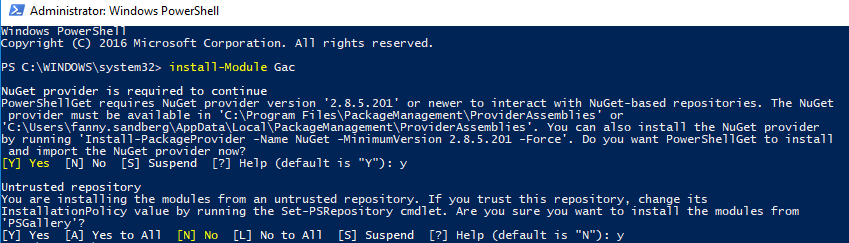
  1. If PowerShell prompts you to install NuGet or confirm installation, answer Y as needed.
  2. If PowerShell reports that scripts cannot run, enable script execution for your user and then repeat the command:
Set-ExecutionPolicy RemoteSigned -Scope CurrentUser
  1. List the installed ECO-related GAC assemblies:
Get-GacAssembly Eco*
  1. Identify the public key token in the output. For example, if the output shows PublicKeyToken=46a833be9e90de8c, remove assemblies using that token:
Get-GacAssembly -PublicKeyToken 46a833be9e90de8c | Remove-GacAssembly
  1. Check C:\Program Files (x86)\CapableObjects. If files remain after uninstalling, remove the remaining files manually.
  2. Install the MDriven Framework version required by the solution.
  3. Verify the result with Get-GacAssembly Eco*. The remaining assemblies should belong only to the version you installed.
  4. In Visual Studio, clean the solution, run Update All Code, and build.

Use Ctrl+V to paste commands into PowerShell. In some Windows versions, right-click paste can alter the hyphen character in a command.

Broad removal by assembly name

You can remove MDriven-related GAC assemblies by name instead of filtering by public key token. This is broader and can be useful when the unwanted version is not readily identifiable, but it is easier to remove more assemblies than intended. Run these commands only after closing applications that use MDriven assemblies:

Get-GacAssembly Eco* | Remove-GacAssembly
Get-GacAssembly Droopy* | Remove-GacAssembly
Get-GacAssembly MDriven* | Remove-GacAssembly
Get-GacAssembly Wecpof* | Remove-GacAssembly

Install the required Framework version after removal, then clean, update all code, and build the solution.

Manual GAC cleanup

If PowerShell cleanup is not available, you can inspect the GAC in File Explorer:

  1. Close Visual Studio and all applications that use the affected solution.
  2. Open C:\Windows\Microsoft.NET\assembly\GAC_MSIL.
  3. Delete folders matching Eco., MDriven, and WECPOF*.
  4. If Windows reports that a file is locked, an application still uses the assembly. Use Task Manager to find and end the application, then retry.
  5. Install the required MDriven Framework version.
  6. Clean the solution, run Update All Code, and build.

Common symptoms

Symptom Likely action
The solution fails to compile after the version change. Run Step 1. Also verify that affected projects target .NET Framework 4.5 or later; see Documentation:.net version.
Reinstalling does not remove errors that name an old assembly version or report a manifest mismatch. Run Step 3 to remove obsolete GAC entries, then reinstall the required version.
MDriven Designer or the MDriven Framework Visual Studio tooling fails to start and reports a plugin-loading or manifest-definition mismatch. Follow Documentation:Exception starting, which covers known residue from older installations and the relevant GAC folders.

Version and platform considerations

This page concerns installed MDriven Framework versions and legacy GAC cleanup. MDriven is moving away from GAC reliance as its tooling and applications move to newer .NET versions. For current .NET and NuGet direction, see Documentation:Dotnet core.

MDriven 7.2 includes assembly and API changes that can require source changes in older projects. For example, generated WinForms code using Eco.Handles.IColumn[] may need to use Eco.Handles.AbstractColumn[]. Review Documentation:MDriven 7.2 when the version change involves MDriven 7.2.

Step 1. Clean & Rebuild

Start by cleaning the entire solution from Visual Studio. Start by cleaning the entire solution by right-clicking the solution (from Visual Studio) and choosing "Clean Solution."

When the Clean has succeeded, press Update All Code, and finally Build.

Step 2. Uninstall Eco

If step 1 doesn't fix your problem, try this step. Sometimes, the build may regenerate more errors. When this happens, try to uninstall the MDriven Framework completely. First, ensure that all Visual Studio applications are closed, then uninstall MDriven through "Add or remove programs" on your Windows. Find MDriven Framework from the list and press uninstall.

When completely uninstalled, continue by re-installing the desired version. Clean your solution, update the code, and build.

Step 3. Clean GAC

Error messages resembling the following indicate GAC-related issues. If the errors remain and look something like thisː

You might need to clean your GAC (Global Assembly Cache). Do this by following the next steps.

  • Run a PowerShell cmd as administrator.
  • Runː Install-Module Gac
    Press Y a few times to install "Nuget" and then "Gac."
    • Close Visual Studio and Uninstall MDriven Framework from your machine (as in step 2, through "Add or remove programs") before you continue the cleaning with the GAC tool. Please note that no applications connected to the solution can be running when cleaning the GAC or changing a Framework version as this might leave trash.
    • Runː Get-GacAssembly Eco* As you can see, there are plenty of things in here (depending on how long it has been since you cleaned this). You can probably also find the unwanted version that Visual Studio is bugging about.
      • If you get an error that Get-GacAssembly can't run, you need to enable script execution by issuing the command Set-ExecutionPolicy RemoteSigned -Scope CurrentUser
    • Copy the public key token from the output
    • Again with your PublicKeyToken, run
 Get-GacAssembly –publickeytoken 46a833be9e90de8c | Remove-GacAssembly

Note about copying the text above: If you paste into a PowerShell windows by right-clicking, you might lose the sign on in some windows versions. Use Ctrl + V.

  • Go to "Cː\Program Files (x86)\CapableObjects" to see if there is anything left in the folder. If there is, remove it manually.
  • After completing this, install the desired version of MDriven Framework. Run the Get-GacAssembly Eco* command to confirm that you only have assemblies regarding the desired version.
  • Clean your solution, update the code, and build.

See also